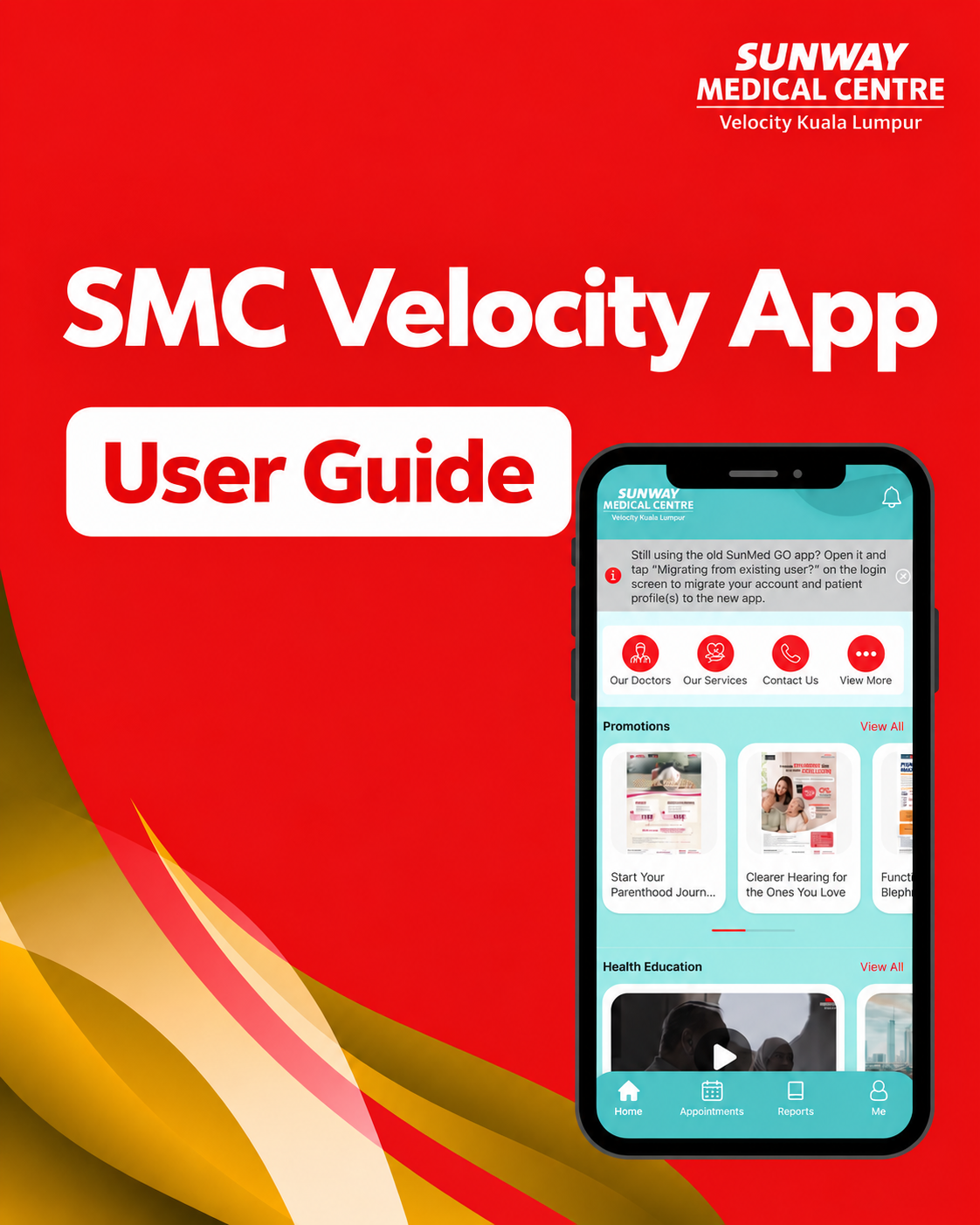



A Smarter
Healthcare Experience
Meet SMC Velocity App
- Book Appointments
- Find Doctors
- View Reports
- Reminders & Updates
- Promotions & Privileges





All in one app.



Everything You Need, All in One App

Need Help Using the SMC Velocity App?
View our user guide for step-by-step instructions on using the app’s key features.
View App User Guide
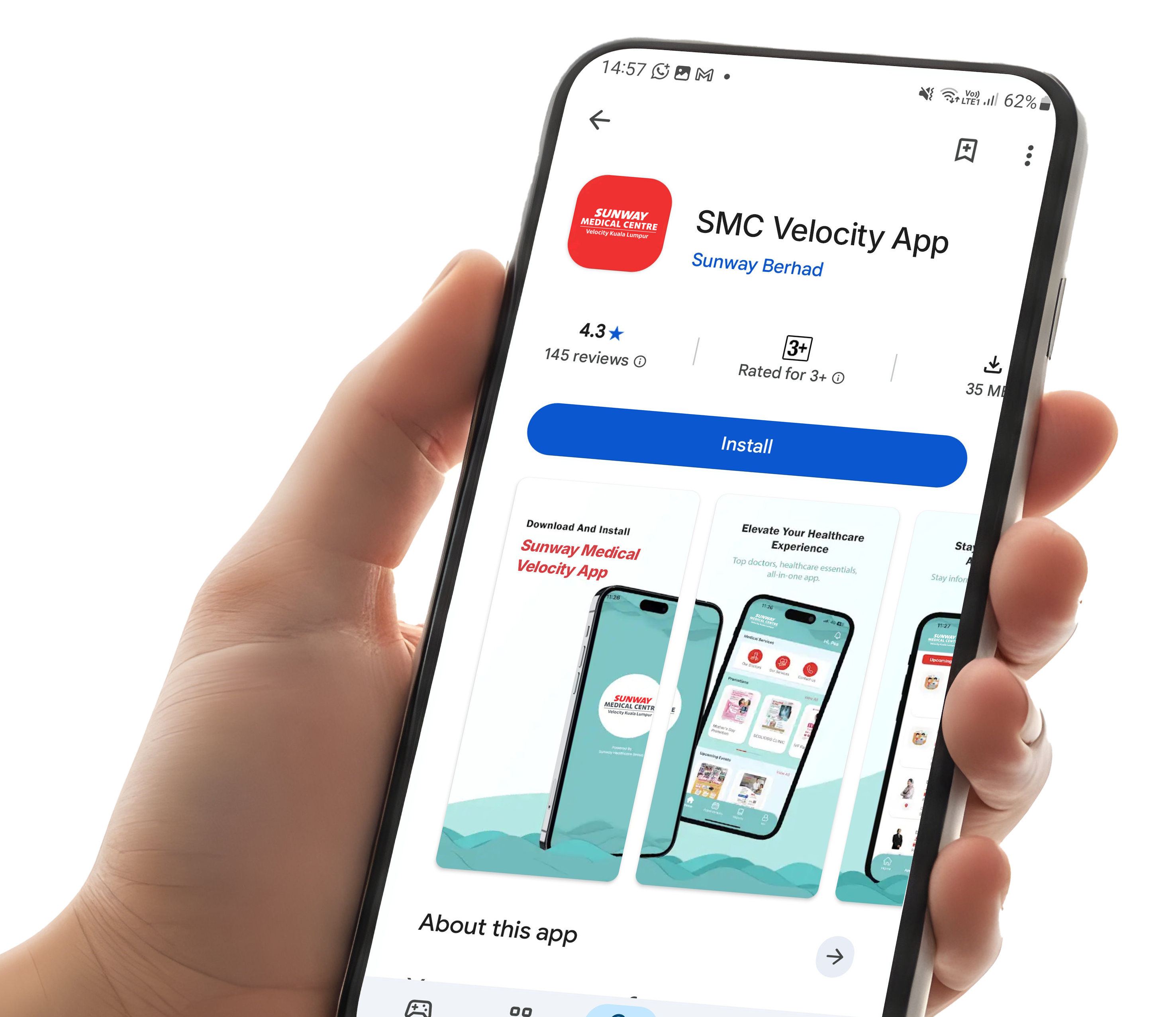
Need Help Using the SMC Velocity App?
View our user guide for step-by-step instructions on using the app’s key features.
View App User Guide
Set Up Your SMC Velocity App
Follow the steps below based on your current app usage.

New SMC Velocity App User
Download the app and create your account.
-
Download the SMC Velocity App
Download and install the latest SMC Velocity App on your mobile device.
-
Create Your Account
Sign up for a new account and complete the verification process.
-
Add Your Patient Profile
Go to Me → Add Patient Profile to add or create your patient profile and complete the required verification.
-
Start Using the App
Once your patient profile is set up, you can access appointments and other available patient services.

Existing SunMed GO User
Download the new app and transfer your account to continue using our services.
-
Download the SMC Velocity App
Download and install the latest SMC Velocity App on your mobile device.
-
Transfer Your Account
Select “Transfer My Account” to migrate your existing account to the new SMC Velocity App.
-
Set Your New Password
Complete the verification process and create a new password for your migrated account.
-
Add Your Patient Profile Again
Patient profiles are not automatically transferred. After signing in, go to Me → Add Patient Profile to add or link your patient profile again and access your appointments and records.

Frequently Asked Questions
Everything you need to know about downloading, setting up and using the SMC Velocity App.
About the SMC Velocity App
The SMC Velocity App is Sunway Medical Centre Velocity’s mobile app that allows you to manage patient profiles, find doctors and services, manage appointments, access reports, explore promotions and vouchers, view health information, submit feedback and request medical reports.
The SMC Velocity App is available on the Apple App Store, Google Play and Huawei AppGallery.
Yes. The SMC Velocity App is free to download.
For Existing SunMed GO Users
Select “Transfer My Account” to migrate your existing account to the new SMC Velocity App. Enter the mobile number registered with your SunMed GO account, complete the OTP verification, confirm your email address and create a new password.
No. Select “Transfer My Account” to migrate your existing account instead of creating a new one. First, download the new SMC Velocity App, then complete the verification process and set a new password.
No. Patient profiles will not be transferred automatically. After signing in to the new SMC Velocity App, you will need to add or link your patient profile again to access your appointments and records.
Account & Patient Profile Setup
Go to Me → Login / Register → Sign Up. Fill in the required details and complete the verification process. An OTP will be sent to your registered mobile number.
After signing in, go to Me → Add Patient Profile. If you are an existing SMCV patient, you can link your patient profile using NRIC, Passport or MRN, then complete the OTP verification. If you are creating a new patient profile, follow the on-screen pre-registration and verification steps.
Once verification is successful, your patient profile will appear in the Patient Profile list with its Medical Record Number (MRN) displayed.
Yes. The SMC Velocity App supports multiple patient profiles under one account, for example, a parent adding a child’s profile.
The OTP will be sent to the patient’s registered phone number. Enter the 6-digit OTP and submit it to complete verification.
Appointments & Finding a Doctor
You can book, view, reschedule and cancel appointments through the SMC Velocity App.
Go to Our Doctors and select your preferred doctor. Tap Appointment, choose an available date and time, select the relevant patient profile, review the appointment details and confirm your booking.
Go to Appointment, open the menu for the relevant appointment and select Reschedule Appointment. Choose a new date and time, then confirm the change.
Go to Appointment, open the menu for the relevant appointment and select Cancel Appointment. Confirm the cancellation when prompted.
Go to Our Doctors and browse or select your preferred doctor. You can view the doctor’s profile and proceed to book an appointment if required.
Yes. The SMC Velocity App includes doctor and service listings.
Reports & Medical Records
Go to Reports and select the relevant patient profile. Enter the patient’s date of birth when prompted. To receive an available report, tap the email icon and confirm. The report will be sent to the registered email address.
Yes. You can submit a medical report request, upload the required documents and track the status of your request through the SMC Velocity App.
Login & Account Access
Select “Transfer My Account” and complete the account migration process. You will need to create a new password for the SMC Velocity App.
Yes. The same updated login credentials can be used across the SMC Velocity App and Appointment Booking Web.
Enter the mobile number registered with your SunMed GO account and select the available method to receive your OTP. Enter the 6-digit OTP received to continue the account transfer process.
Reminders & Updates
You may receive appointment-related reminders and important hospital or app updates to help you stay informed.
Troubleshooting & Verification Issues
If your registered mobile number has changed or does not match the information in our hospital system, you may not be able to complete the verification process. Please visit the designated registration counter at Sunway Medical Centre Velocity with your NRIC or passport to update your registered mobile number.
No. For security and identity verification purposes, changes to registered personal details cannot be completed over the phone. Please visit the designated registration counter at Sunway Medical Centre Velocity with your NRIC or passport to update your details.
Yes. You can still make an appointment through the SMC Velocity App. However, some online features may not be available until your patient profile is verified. If your registered mobile number is incorrect, please update your details at the hospital during your next visit.
Please restart the SMC Velocity App and try again after 15 minutes. If you still do not receive the OTP, please check that your registered mobile number is correct and contact Sunway Medical Centre Velocity via WhatsApp (+6019 304 1906) for further assistance.
If you are an existing SunMed GO user, select “Transfer My Account” instead of trying to sign in with your previous password. If you are already using the new SMC Velocity App and still cannot log in, please check that you are using your updated login credentials.
Promotions & Health Information
Yes. The SMC Velocity App includes listings for health promotions and vouchers.
Yes. Healthcare education content is available through the SMC Velocity App.
Contact & Feedback
If you experience any issues while using the SMC Velocity App, please refer to Contact Us in the app or reach out to our Customer Service team:
- General Line: +603 9772 9191
- WhatsApp: +6019 304 1906
- Email: [email protected]
Yes. You can submit feedback through the Customer Feedback section in the SMC Velocity App.